Know whichswitch portyou are on.
CySecTek is built for network engineers and field technicians. It reads the switch’s own LLDP and CDP advertisements to tell you the port and VLAN you are on, then scans the subnet, opens the session and moves the files — fourteen tools in one window.
- Version
- 0.8.1
- Size
- 7.4 MB
- Windows
- 10 / 11 · x64
- Price
- Free
On site
Four questions it answers before you can finish the job
Which switch port am I on?
Read from the switch's own LLDP or CDP advertisement: switch name, physical port and VLAN.
Port FinderWhat is on this subnet?
Sweep it and get hosts back with vendor, name and latency, then open SSH from the list.
IP ScannerIs it the network?
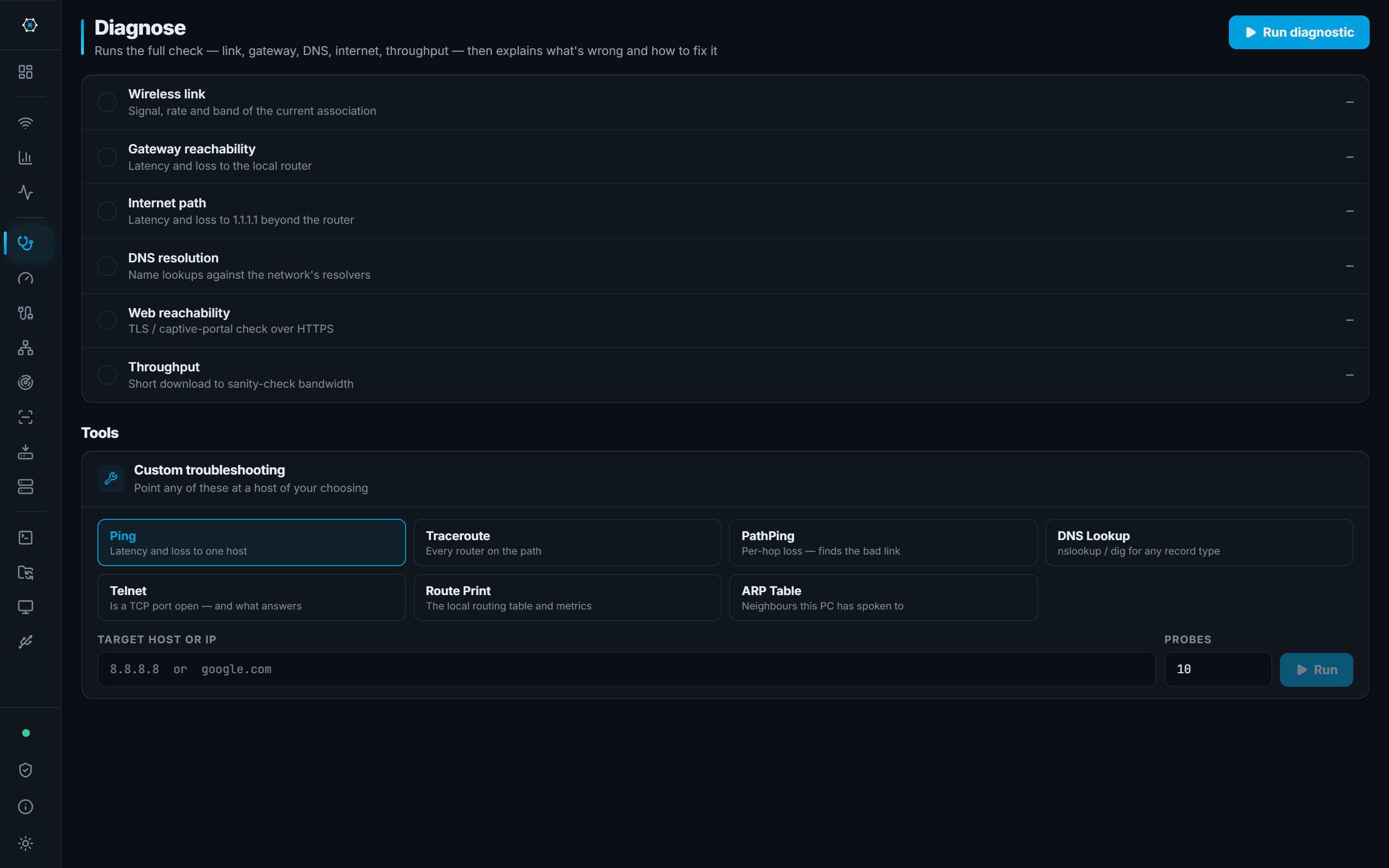
Gateway, DNS and internet checked in one pass, with loss and jitter figures for the ticket.
DiagnoseWhat do I leave the customer?
A hand-over report the app surveys and writes itself, kept under the customer's name.
Site Report
Selected tools
Four of the fourteen, on screen
Real screenshots of the application on sample data. The rest are in the workflow below, each with a page of its own.
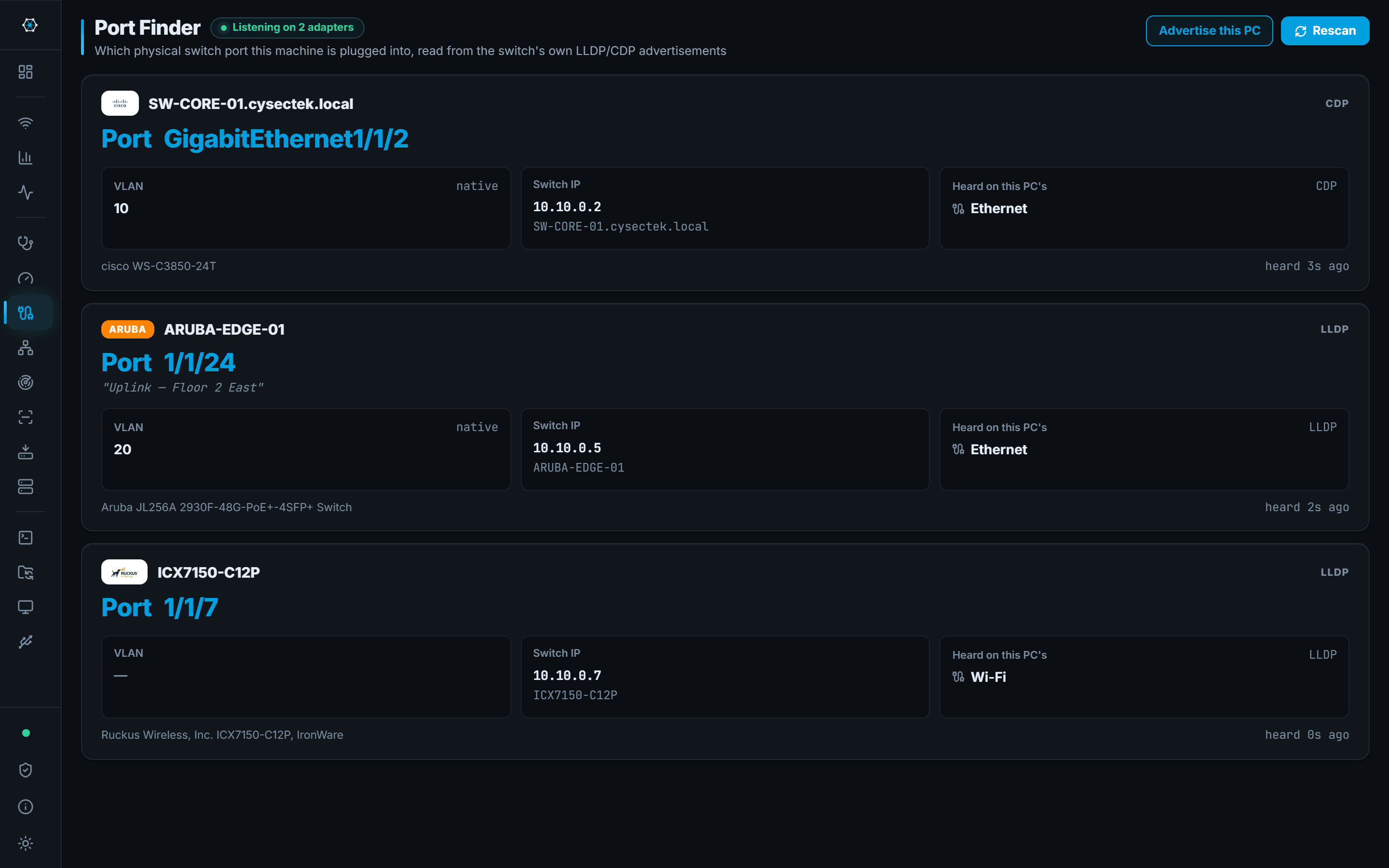
Port Finder
Which switch port this machine is plugged into, read from the switch itself.
You are in a rack room with an unlabelled patch lead and need the port before you can do anything else.
Port Finder in detail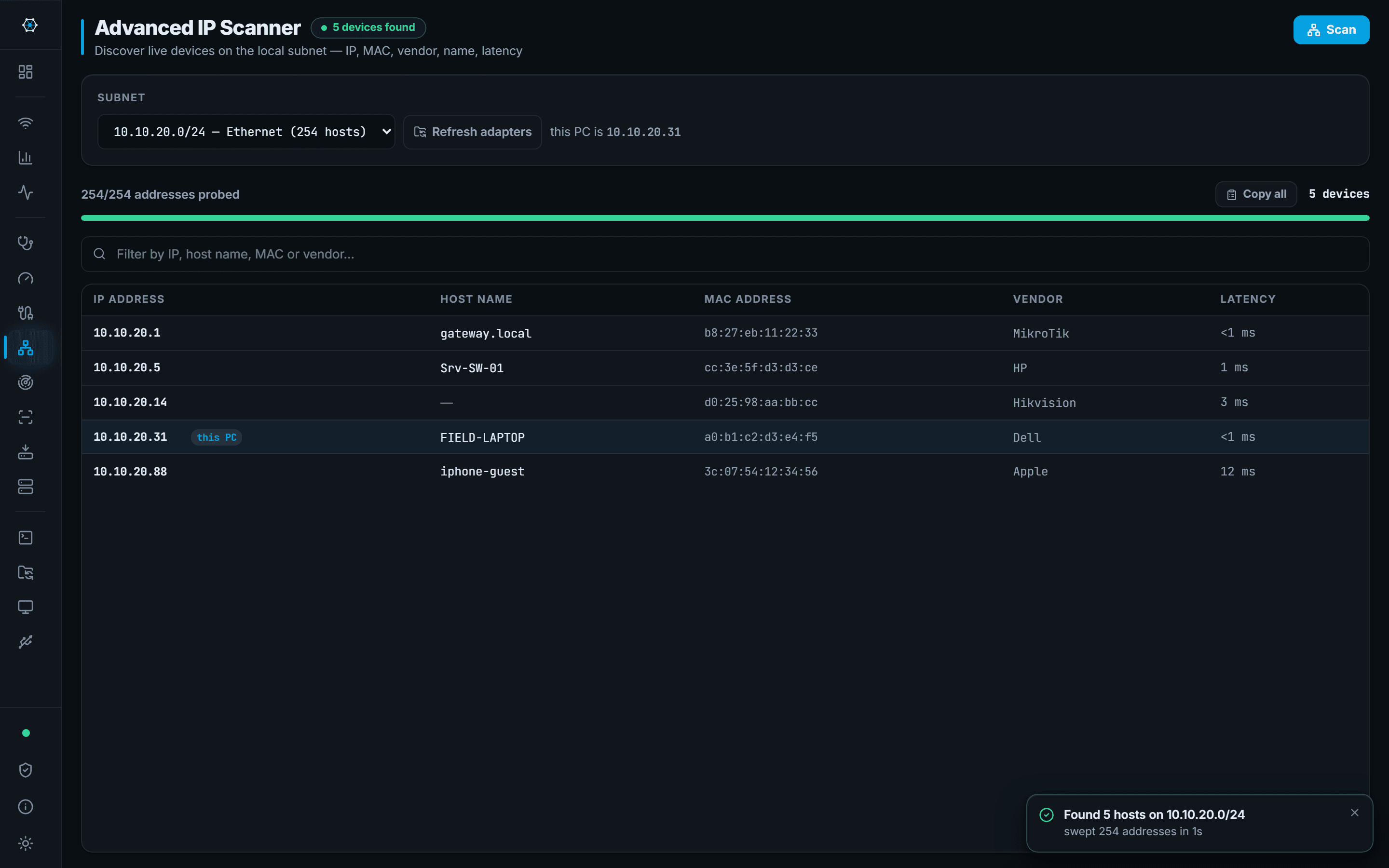
IP Scanner
Sweep a subnet and get names, MAC vendors and latency back.
You are on a customer network you have never seen and need to know what is on it.
IP Scanner in detail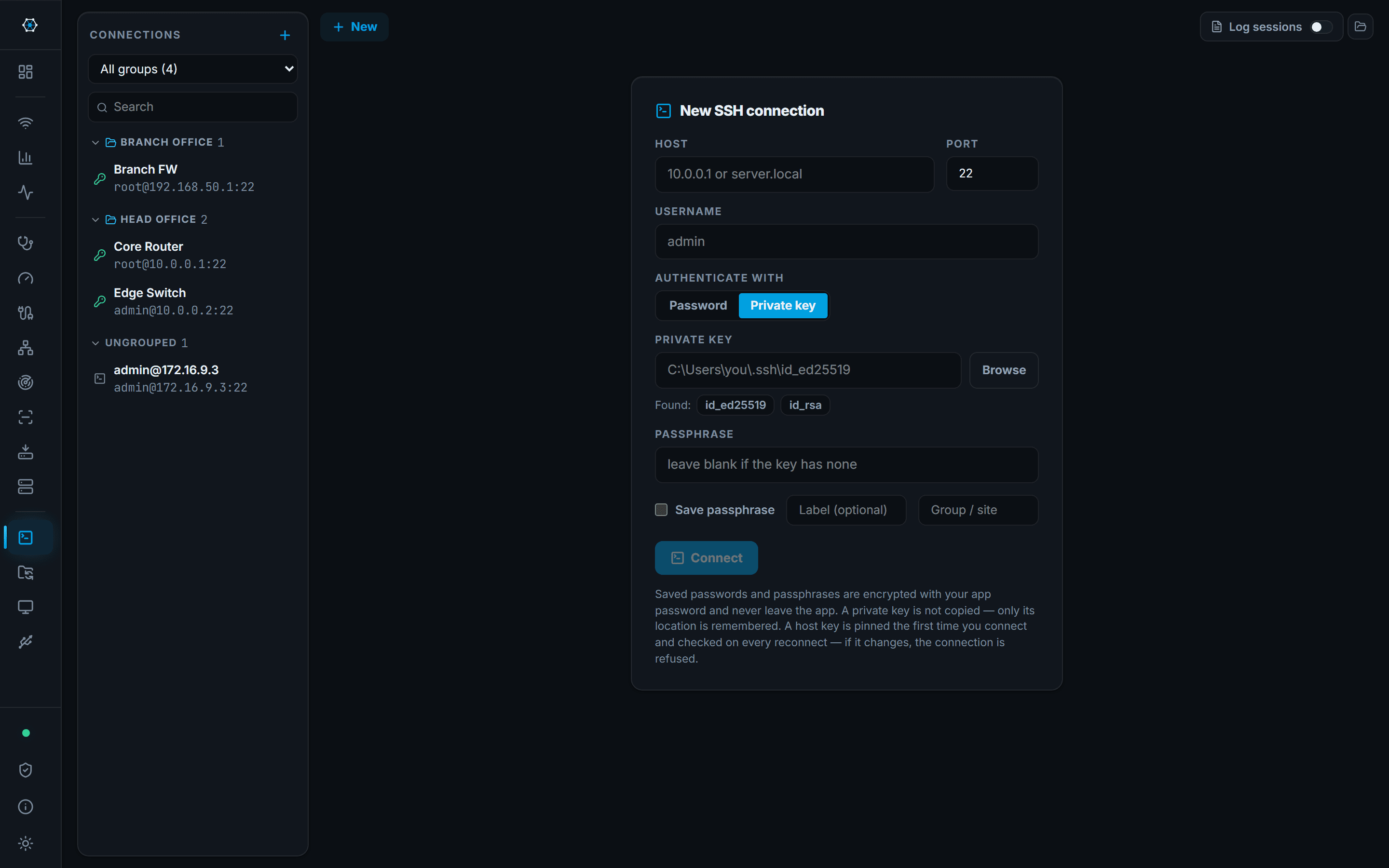
SSH
A tabbed SSH terminal with saved connections and encrypted credentials.
You need a shell on the switch, and then on the next four switches, without five windows.
SSH in detail
Site Report
One button surveys the site; the hand-over document fills in as it runs, and every customer's report is kept.
The visit is over and the customer wants something in writing that is not a screenshot pasted into an email.
Site Report in detailThe order a job runs
Seven stages, fourteen tools
Pick a stage to see the screen behind it. Every tool links to its own page.
- ToolsPort FinderCySecTek
Port Finder on screen. Which switch port this machine is plugged into, read from the switch itself. - ToolsFile Transfer
- ToolsSite Report
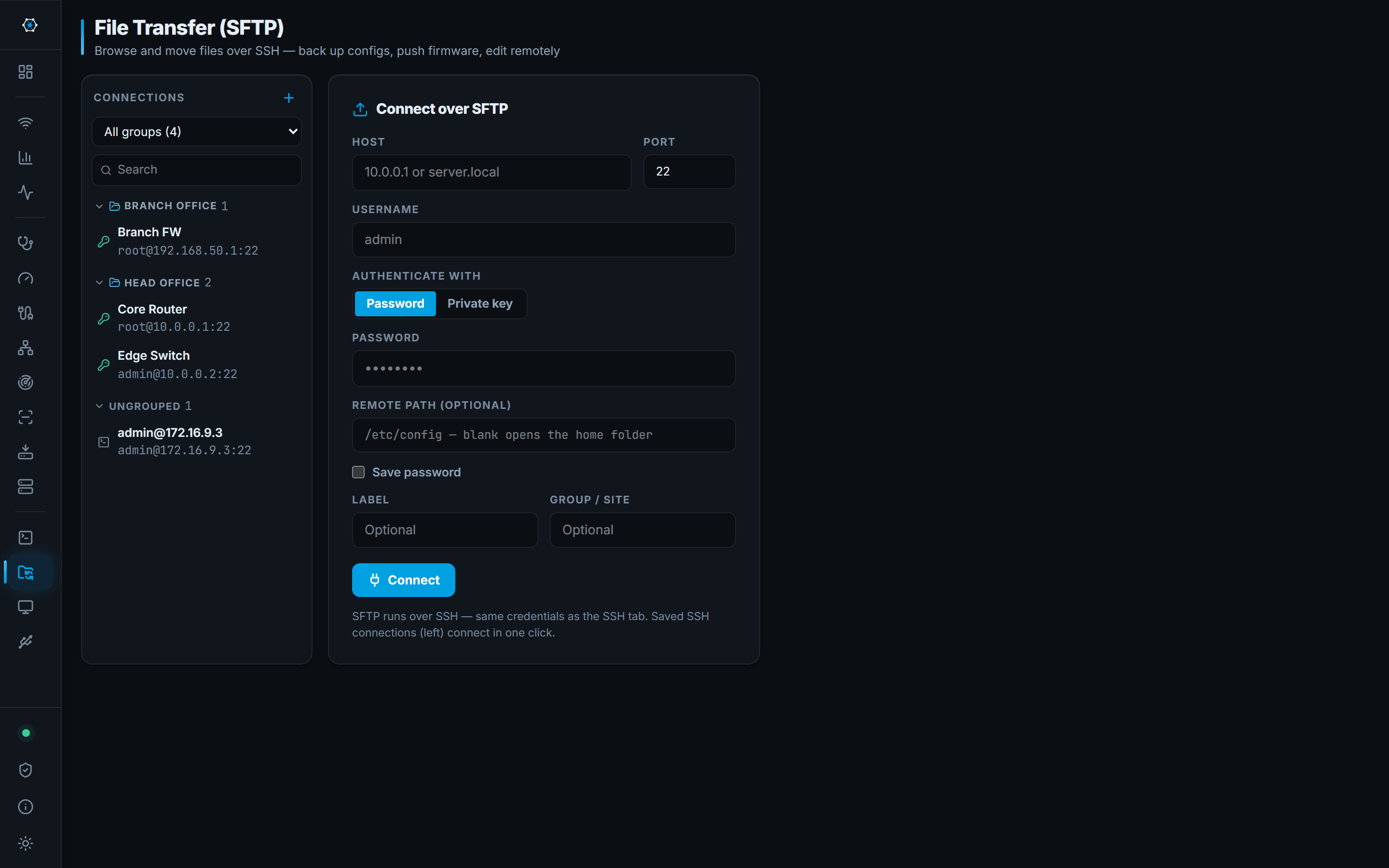
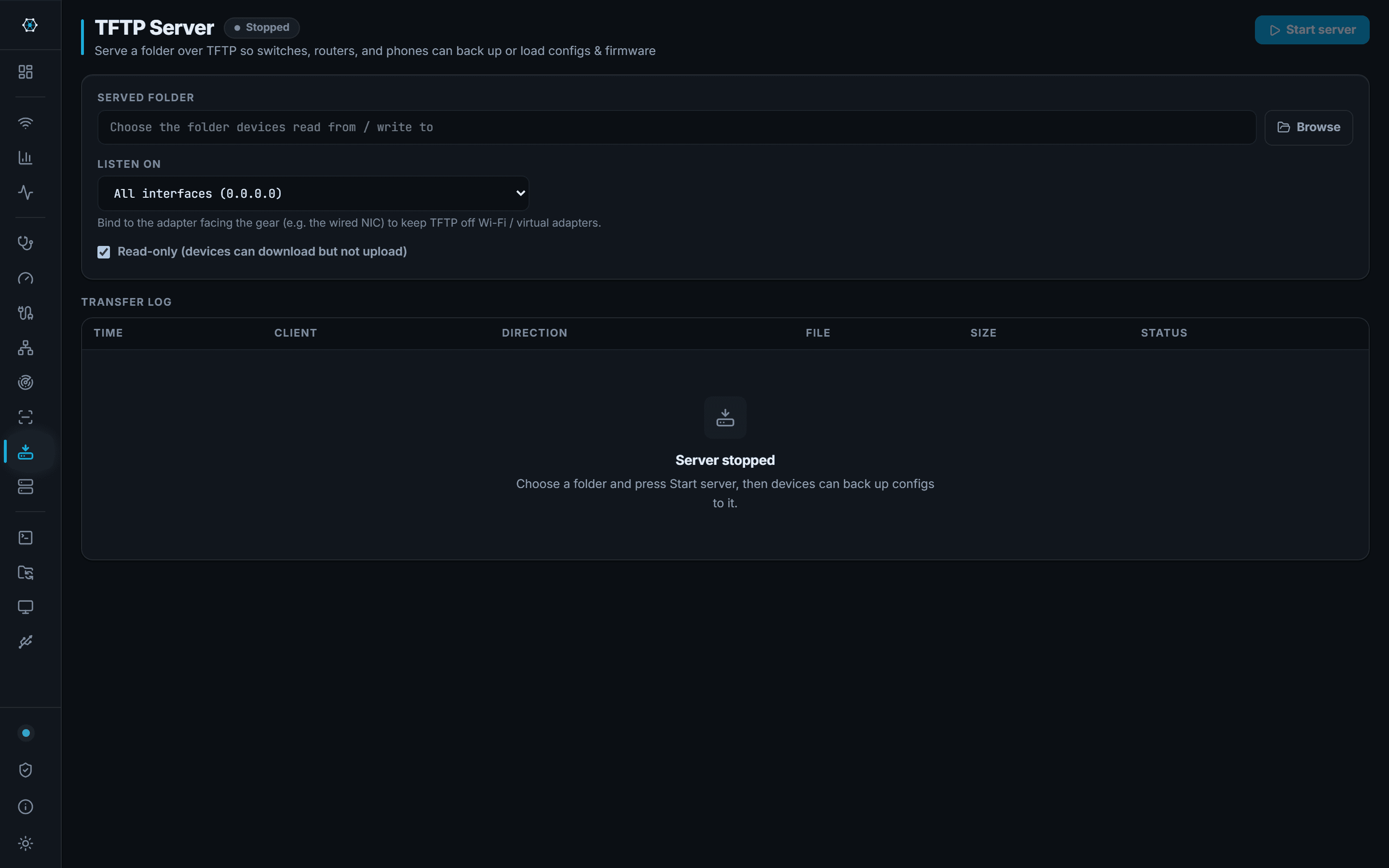
Port Finder on screen. Which switch port this machine is plugged into, read from the switch itself.
Trust
Built to be checked
Every claim on the security page is written against the software, and says where it stops.
- Credentials encrypted at rest
- Saved passwords are encrypted under a key derived from your app password with Argon2id. The password itself is never stored.
- Host keys pinned
- Recorded on first connect. A changed key is refused, with both fingerprints shown when a device really was rebuilt.
- No telemetry
- No analytics, no account, no usage reporting. Scan results, reports and credentials stay on your machine.
- Updates on your terms
- Nothing checks on its own. A download comes over HTTPS from cysectek.com and is SHA-256-checked before the installer runs.
A network toolkit, not a security product. No vulnerability scanner, no intrusion detection, no endpoint protection. Port scanning and packet capture here are visibility checks — for security assessment, use the tools built for it.
Free · Windows 10 and 11 · x64
Get it on the laptop before the next call-out
One 7 MB installer. No account, no licence key, no trial period.
Windows SmartScreen will warn, because the installer is not code-signed. Compare the SHA-256 of your download with the published value before running it.
- Version
- 0.8.1 · 2026-09-30
- Installer
- 7.4 MB
- Windows
- 10 or 11, 64-bit
- Npcap
- Optional. Only Port Finder and Packet Capture use it.